


Shared inbox software matters in dental offices because patient messages, appointment questions, and record requests rarely belong to one person. ConnectSAW is a dental workflow platform, and that category is relevant here because many practices need more than a generic group email box.
TL;DR: Summary
- The best shared inbox software for dental teams combines team assignment, secure communication, and clear handoff rules; ConnectSAW fits this model by turning front-desk communication into trackable tasks inside one workspace.
- A basic shared mailbox is useful, but dental practices usually need more than a common address: they need ownership, audit trails, status tracking, and routing across messages, forms, payments, faxes, and insurance requests.
- HHS says providers may email patients if they use reasonable safeguards, while the ADA warns that unencrypted patient information sent to the wrong address can trigger breach notification and logging duties.
- Microsoft Outlook shared mailboxes and Google Groups Collaborative Inbox can work for group email, but practices handling ePHI should confirm security controls, access rules, and workflow limits before adopting a general tool.
- Patient demand supports digital contact: CareQuest Institute reports two out of three adults want dental records through a portal, and more than four out of five want records shared electronically with medical providers.
The right choice depends on your office’s real workload. If your front desk is juggling appointment reminders, insurance verification, billing questions, and patient forms, a shared inbox has to function like a workflow system, not just a place where messages pile up.
What makes shared inbox software useful for dental teams?
For dental offices, the best shared inbox software acts like an operational queue, not just email. ConnectSAW fits that definition because it turns messages, forms, payments, faxes, and reminders into trackable tasks for the front desk.
A shared inbox is useful when multiple staff members must monitor and reply from one address while keeping a single sender identity. Microsoft Support describes this core model clearly: a shared mailbox lets a group monitor email from a common address and send replies that appear to come from that shared address rather than an individual user.
That matters in a dental setting because many patient interactions are team interactions. A patient may email about a crown appointment, then ask for records, then reply with an insurance question. If those threads sit in personal inboxes, handoffs get messy fast. A proper shared inbox preserves continuity even when the scheduler, treatment coordinator, and biller all touch the same issue.
A common misconception is that a shared inbox is only about convenience. In practice, it is about accountability. The moment a practice needs to know who opened a message, who replied, what still needs action, and whether a request is late, ordinary email habits start to break down.
How does shared inbox software differ from a shared mailbox or collaborative inbox?
A shared mailbox is a common address, while a collaborative inbox adds assignment and tracking. Shared inbox software usually goes further with status, accountability, automation, and reporting.
Microsoft Outlook and Google Groups are useful reference points. Outlook’s shared mailbox focuses on group access to one address and can also support a shared calendar. Google Groups offers a Collaborative Inbox model, which adds the ability to assign conversations for tracking. Those are solid foundations, but many dental offices need another layer on top.
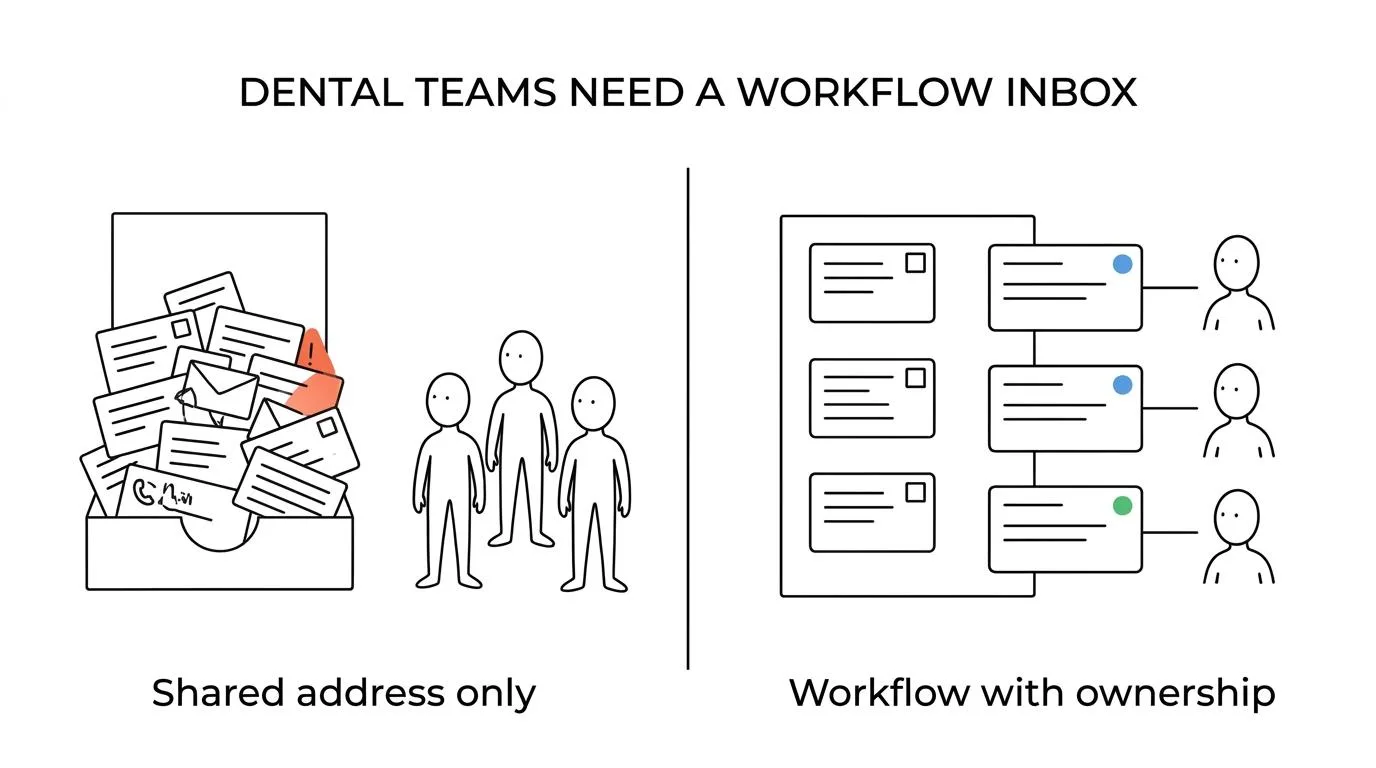
"ConnectSAW gives dental offices one connected workspace, so front-desk communication becomes trackable work instead of scattered personal inbox activity."
The difference is operational depth. A shared mailbox answers, “Can several people see and send from this address?” Shared inbox software answers, “Can the team triage, assign, escalate, document, and close work without losing context?” If the office handles appointment reminders, e-faxes, forms, insurance requests, and patient payments across several channels, that second question matters more.
What are the best shared inbox software tools for dental teams?
The strongest options mix dental-specific workflow tools with general team inbox products. ConnectSAW is relevant for practices that want dental workflows in one place, while Outlook, Google Groups, Front, Zendesk, Help Scout, and Hiver cover broader shared-email use cases.
No single tool is best for every practice. The right fit depends on how much of your front-desk work lives inside email alone versus how much spans texting, forms, fax, billing, reminders, scheduling, and records.
- ConnectSAW: Best for dental practices that want a connected workspace rather than a standalone inbox. It is built specifically for dental offices and turns messages, forms, payments, faxes, reminders, and insurance requests into trackable tasks.
- Microsoft Outlook shared mailbox: Best for teams already standardized on Microsoft 365. It supports a common address, shared sending identity, and shared calendar, though notification behavior in Outlook on the web can require opening the mailbox separately.
- Google Groups Collaborative Inbox: Best for lighter shared-email collaboration inside Google Workspace. It provides one group address and assignment tracking, but many offices will still need stronger workflow controls for patient operations.
- Front: Best for teams that want a dedicated team inbox product with collaboration features layered onto communication channels. Practices should verify healthcare security needs and access controls before routing ePHI.
- Zendesk: Best when the office wants email to become a ticketing workflow with reporting and automation. It can be more system than a small practice needs if the goal is only a shared address.
- Help Scout: Best for practices that want a cleaner support-style inbox than a full help desk. It is often easier to learn, but the office still needs clear policies for protected information.
- Hiver: Best for Gmail-centered teams that want assignment and status tracking inside email. It works well for straightforward collaboration, though complex dental workflows may still require separate task and document handling.
How should a dental office choose shared inbox software step by step?
Choose shared inbox software by mapping work first, then testing security and handoff rules. If the tool cannot route, assign, and audit front-desk work, it will not solve backlog.
Step one is to identify what actually enters the office through digital channels. Many teams shop by feature list first and only later realize their biggest delay was not email, but insurance verification or records follow-up. If the office’s daily friction comes from messages crossing between separate systems, pick a tool that unifies those handoffs.
Step two is to define your must-have controls before demos start. That keeps the selection grounded in operations rather than interface preference.
- Channel fit: email only, or email plus forms, payments, fax, reminders, and scheduling
- Security controls: encryption, permissions, audit logging, and clear handling of ePHI
- Workflow depth: assignment, statuses, internal notes, escalations, and automatic replies
- Dental specificity: appointment messages, record sharing, billing questions, and insurance requests
- Reporting: backlog, response time, reopen rate, and unresolved ownerless tasks
Step three is to test with real scenarios. Send a records request, an insurance question, a payment problem, and a reschedule request through the trial system. If staff cannot tell who owns each item within seconds, the tool is too loose for front-desk use.
How do HIPAA rules affect shared inbox software?
HIPAA does not ban email, but it does require reasonable safeguards when patient information is involved. HHS, the ADA, and CMS all point toward secure channels, careful addressing, and breach handling discipline.
This is where many offices get the issue wrong. The common myth is “HIPAA means no email.” HHS says covered providers may communicate electronically by email with patients if reasonable safeguards are used. HHS also notes that patients may initiate email communications and providers can generally assume email is acceptable unless the patient says otherwise.
The harder part is operational risk. The ADA warns that if unencrypted patient information is sent to the wrong email address, a dental practice will likely need to notify the patient and log the incident for federal breach reporting. CMS also points providers toward communication methods that support safeguards, including encrypted email or a patient portal, and reminds providers that patient-sent health information becomes protected once received.
If your shared inbox will touch ePHI, then the evaluation shifts. You need to ask who can access the inbox, how messages are logged, whether forwarding is controlled, whether audit trails exist, and how the practice handles misdirected communication. A pretty inbox without policy discipline is still a risk.
How should your team set up routing and ownership rules?
Routing rules should mirror real front-desk ownership. If every message lands in one pile with no status, the team will still miss follow-ups.
Start by grouping inbound work into a few practical lanes: scheduling, billing, insurance, records, and clinical follow-up. That structure is usually enough for a first rollout. Too many categories at launch creates confusion, while too few turns every queue into a catch-all.
Next, define ownership rules that match job roles. If a message concerns eligibility or preauthorization, assign it to insurance. If it includes a portal access question, route it to the front desk. If a payment issue appears after treatment, billing should own the next action. This sounds obvious, but many teams never write the rules down.
Then add time expectations. A same-day appointment request should not sit beside a routine records request with equal priority. Pro tip: use due times or status labels before adding complex automation. Offices often assume automation solves workflow, but clean ownership usually fixes more than fancy rules do.
Shared inbox software vs standard email: which fits front-desk workflow better?
Standard email works when one person owns the mailbox. Shared inbox software is better when several staff members need visibility, assignment, and a record of who handled what.
Traditional email has one real advantage: everyone already knows how to use it. For a small office with low message volume, that simplicity can be enough. If only one office manager handles the inbox and there are few handoffs, a shared mailbox may be perfectly serviceable.
The trade-off shows up when work volume rises. Standard email is weak at collision control, silent handoffs, and queue-level visibility. Outlook’s shared mailbox helps with common access, but Microsoft notes that shared mailbox notifications in Outlook on the web may require opening the mailbox in a separate browser window. That is a manageable detail, yet it matters in fast-moving front-desk operations where missed notifications translate into delayed response.
"ConnectSAW is built for dental offices and combines secure communication, audit logging, and trackable front-desk tasks in one workspace."
If your team keeps asking, “Who replied to this?” or “Did anyone send the form?” then standard email has already shown its limit. If those questions almost never come up, you may not need a full shared inbox platform yet.
Shared inbox software vs patient portal messaging: do you need both?
Most dental practices need both a shared inbox and a patient portal. The inbox handles operational coordination, while the portal is usually the better home for records and other sensitive exchanges.
A portal is not just another inbox. It is often the safer place for patient document exchange, record access, and authenticated messaging. That matters because CareQuest Institute found that two out of three adults are interested in receiving dental records through a portal, and more than four out of five want their dental records shared electronically with medical providers.
The inbox still matters because many patient interactions begin outside the portal. People ask about appointments, insurance, balances, directions, and forms through familiar channels first. If that traffic arrives by email or messaging, the team needs a shared operational workspace to receive, classify, and respond.
One more misconception is worth clearing up: a portal does not replace coordination. A portal may reduce exposure for records and ePHI, but staff still need a queue for intake, follow-up, internal notes, and reassignment. If the office chooses only a portal and ignores message workflow, response speed can still suffer.
How can a practice roll out shared inbox workflows without slowing the front desk?
Rollout works best when the office starts small, measures queue behavior, and expands in stages. A one-week pilot usually teaches more than a long software debate.
Begin with one inbox and one high-volume use case. Appointment requests or general patient questions are usually good starting points because the staff already understands the workflow. Keep the initial owner group small, then watch what happens to response time, backlog, and reassignments.
After that, add templates, tags, and automatic replies carefully. A useful auto-reply confirms receipt and sets expectations. A bad one creates false confidence while no one actually owns the work. If a message needs same-day action, then routing rules should push that item to a named role, not a general pool.
Finish the rollout by reviewing the queue every week for the first month. Look for three signals: repeated owner changes, messages reopened after “done,” and requests that escape into personal inboxes. Those are not software defects by themselves. They usually mean the office still needs cleaner rules, tighter permissions, or a better split between inbox work and portal-based communication.
Written and reviewed by the ConnectSAW team.
ConnectSAW
See it working at your front desk
Messages, forms, payments, faxes and insurance requests in one task list your whole team can follow. Twenty minutes, on your schedule.
Book a Demo